A scoreboard overlay shows the score over the video of a game, and the period and the clock where the sport keeps them. With MaestroScores it is the Scorebug: The small score bar a broadcast shows over the picture. In MaestroScores it is one of a board's screens, a page with a transparent background made for OBS. All terms: a small bar on a transparent page that OBS Studio: Free, open-source software for recording and live streaming, for Windows, macOS and Linux. All terms shows over your camera. Someone keeps the score on a phone, and the overlay changes the moment they tap. This guide takes you through the whole setup, from installing OBS to going live, in about ten minutes.
You need a computer for OBS (Windows, macOS or Linux), a camera or a Capture card: A device that brings the video of a camera or another machine into the computer, where OBS shows it as a video capture source. All terms, and a phone for whoever keeps the score.
Install OBS Studio
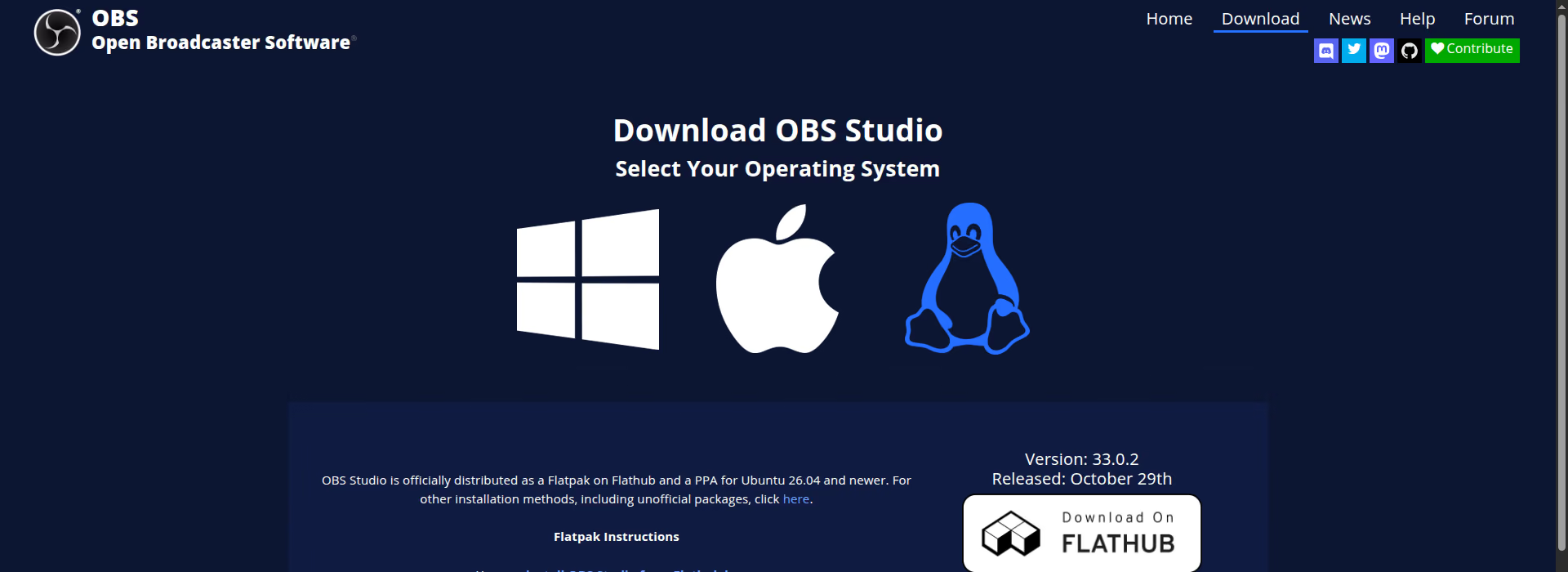
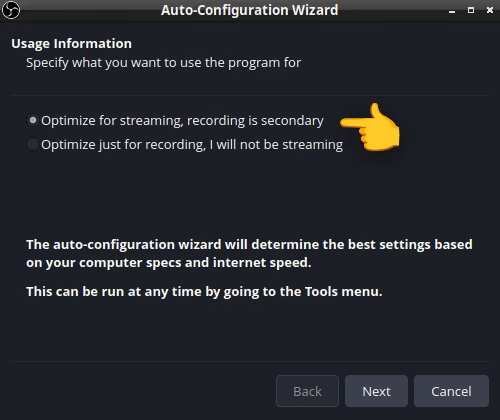
OBS Studio is free, open-source software for recording and live streaming. Download it from obsproject.com, the project's own site, and install it like any other program. On the first start OBS offers its Auto-Configuration Wizard: choose Optimize for streaming, recording is secondary, and let it test your connection, so it picks settings that suit your computer and your network. Note the Canvas: The size of the picture OBS makes, its base resolution; every source is placed on it. It starts at your monitor's resolution. All terms it settles on, the size of the picture OBS makes: it starts at your monitor's resolution, often 1920 × 1080, and the Scorebug gets the same size in step 3. Streaming at 30 frames per second asks much less of the computer than at 60. An older version of OBS may name a button differently from this guide.
TipAlready have OBS? Skip to step 2.
Create a board and copy its Scorebug link
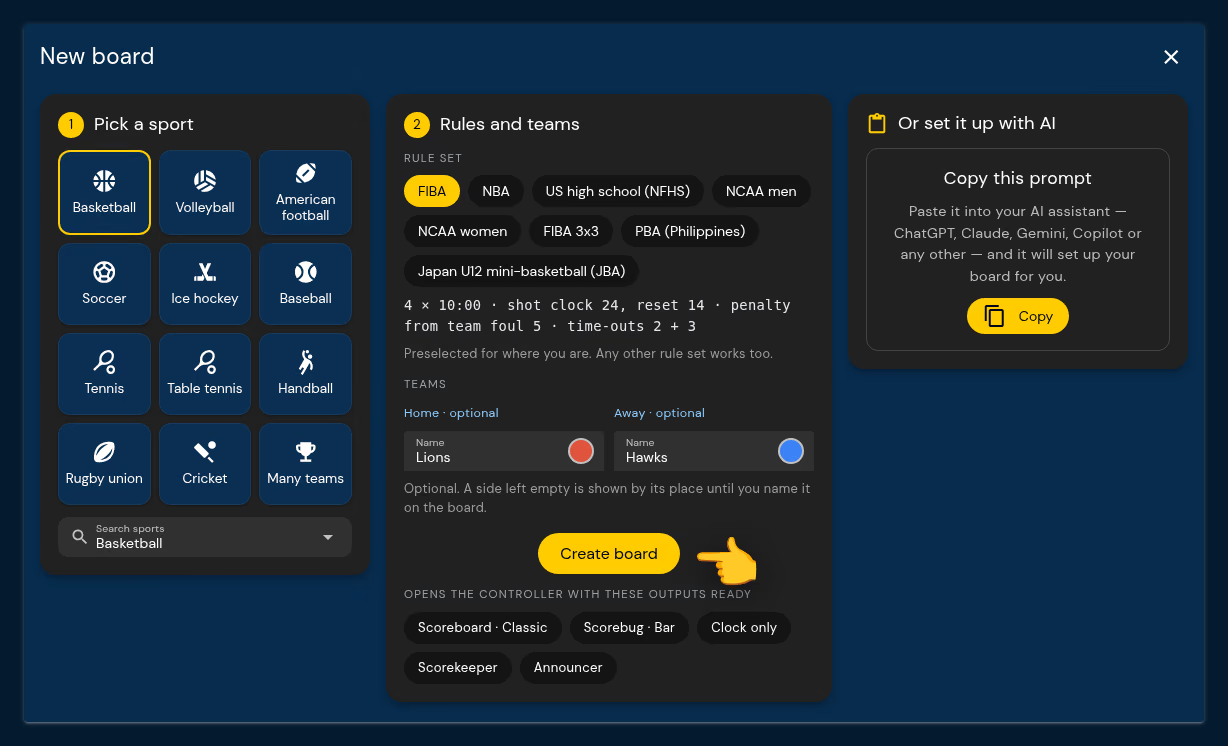
On MaestroScores, create a board for your sport and enter the team names. Every board comes with its screens, each behind its own link: the Scoreboard for a TV, the Scorekeeper: The board's page for keeping the score on a phone. Its link goes to whoever keeps the score. All terms page for the phone, and the Scorebug for the stream. Copy the Scorebug's link. It never changes, so you set up OBS once per board.
- Create the board: choose the sport, the rules and the teams, then press Create board. The board opens.
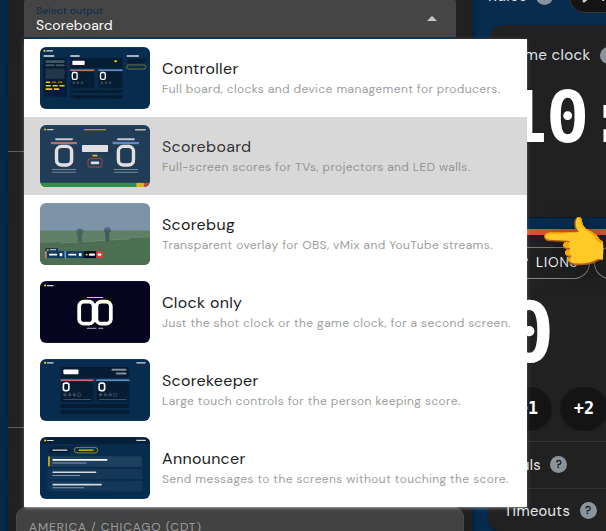
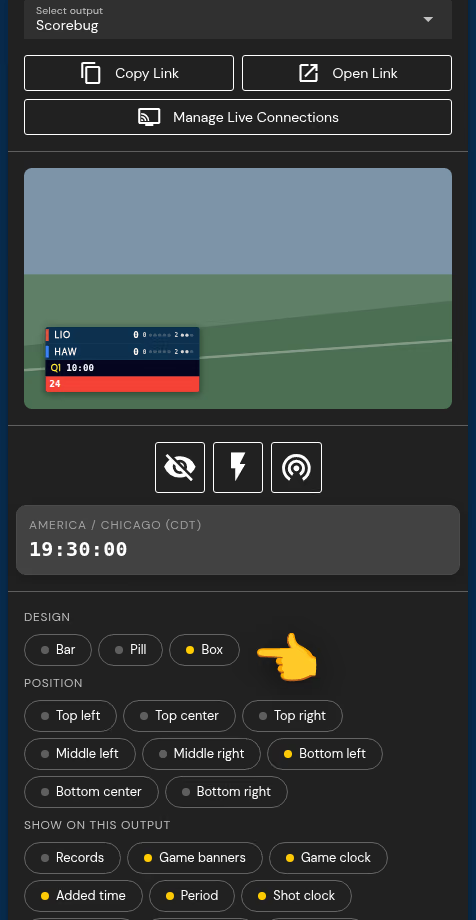
- In its Outputs card, open Select output and choose Scorebug.
- Press Copy Link.
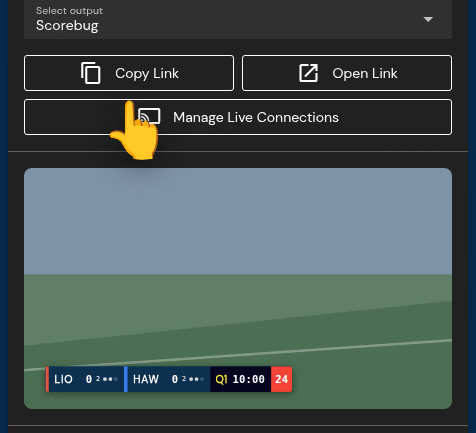
TipChoose the Scorebug's design here too: Bar, Pill or Box. Where it sits is chosen here as well, under Position. You can change both during the game without touching OBS.
Add the Scorebug as a browser source
In OBS, a browser source shows a web page inside a Scene: One layout of your stream in OBS, made of sources stacked on top of each other: the camera, the overlay, text. All terms. Its default Custom CSS: A browser source's style setting. Its default makes the page's background transparent, removes the page's margins and hides its scroll bar. All terms makes the page's background transparent, so only the Scorebug's bar covers your video.
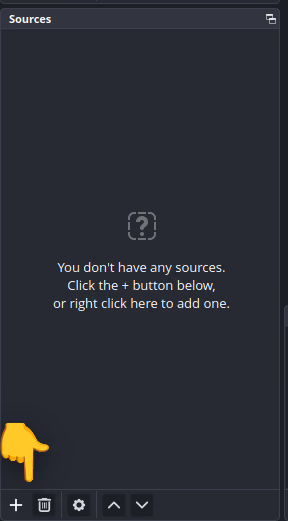
- In the Sources Dock: A panel of the OBS window, such as Sources or Controls. Docks can be moved around, and each can be popped out into its own window. All terms at the bottom of OBS, click +. The Add Source window opens.
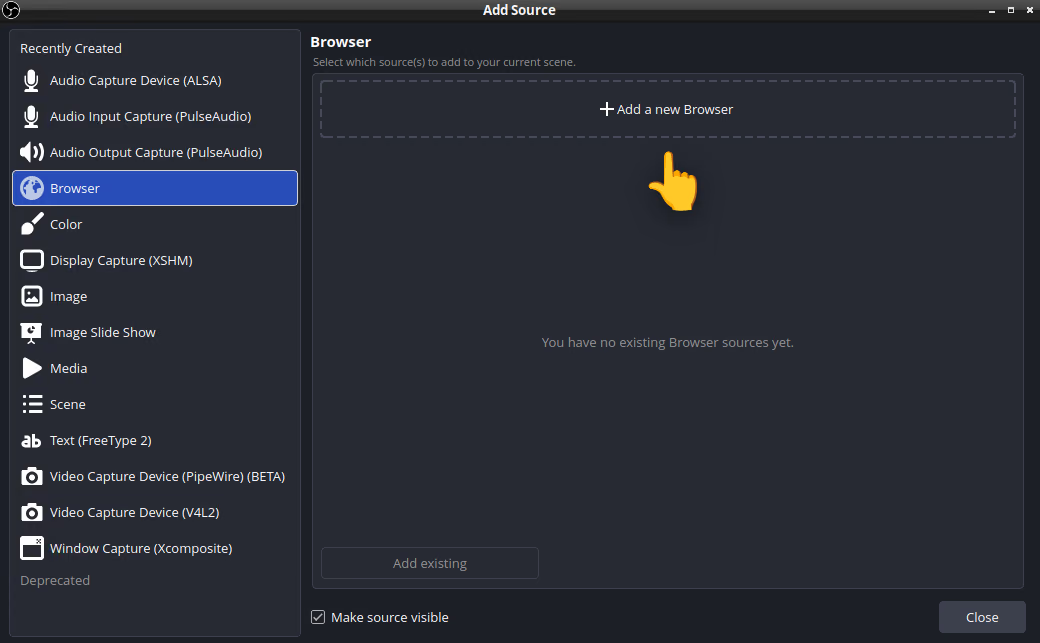
- Choose Browser in the list on the left, then press Add a new Browser. OBS adds the source and opens its properties.
- Paste the link into URL. Set Width and Height to the size of your canvas: 1920 and 1080 on a canvas of 1920 × 1080.
- Leave Custom CSS as it is, and press OK.
- Right-click the new source in Sources, choose Rename and call it Scorebug, so you find it later.
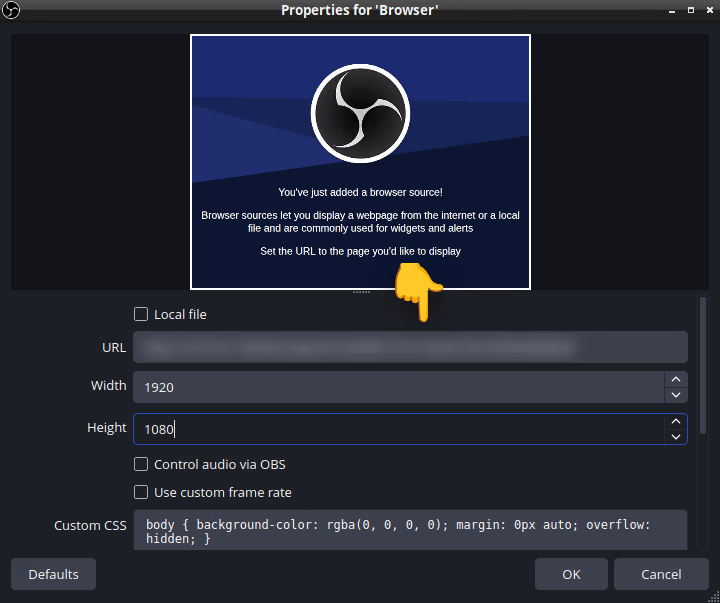
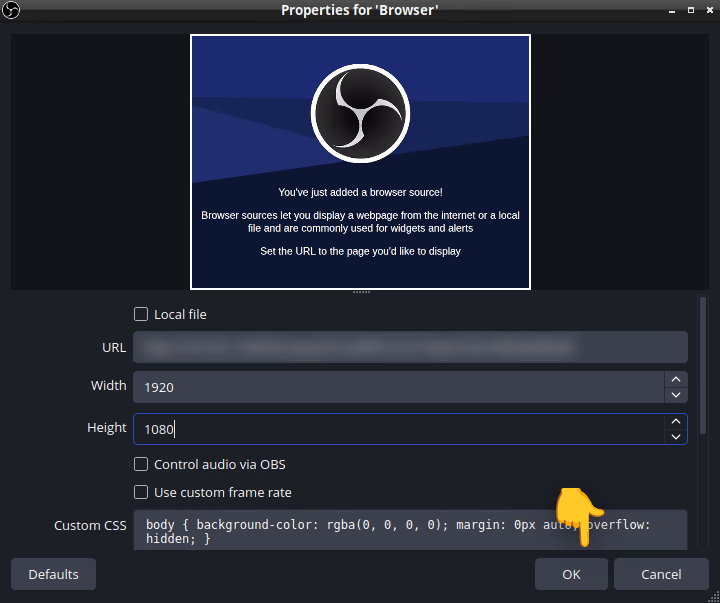
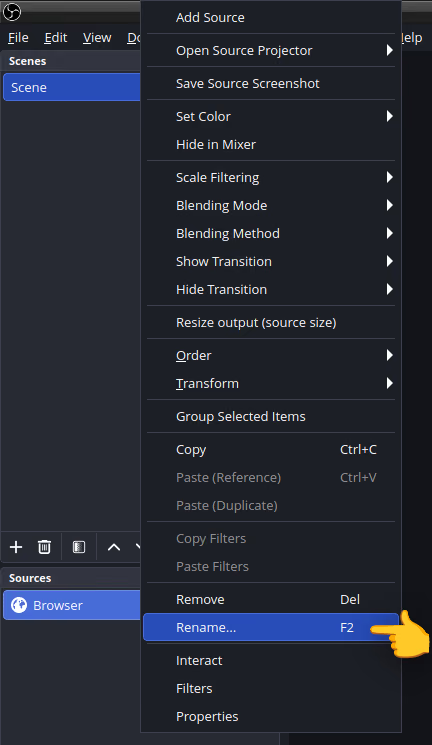
TipMake the width and height the size of your canvas, not of the bar: the Scorebug places and sizes its bar on the page itself, so it lands in the right spot and stays sharp.
Put the Scorebug over your camera
Sources higher in the Sources list are drawn on top of the ones below. Keep the Scorebug above your camera or capture card, and lock it so a stray click does not move it. Where the bar sits is set on the board, not in OBS: it starts bottom left, and under Position you can pick another of eight spots.
- In Sources, drag Scorebug above your camera.
- Click the lock icon beside it.
- To move the bar, pick another spot under Position on the board, and it moves in OBS by itself. To fine-tune it there, unlock the source and drag it in the preview, or right-click it and choose Transform › Edit Transform.
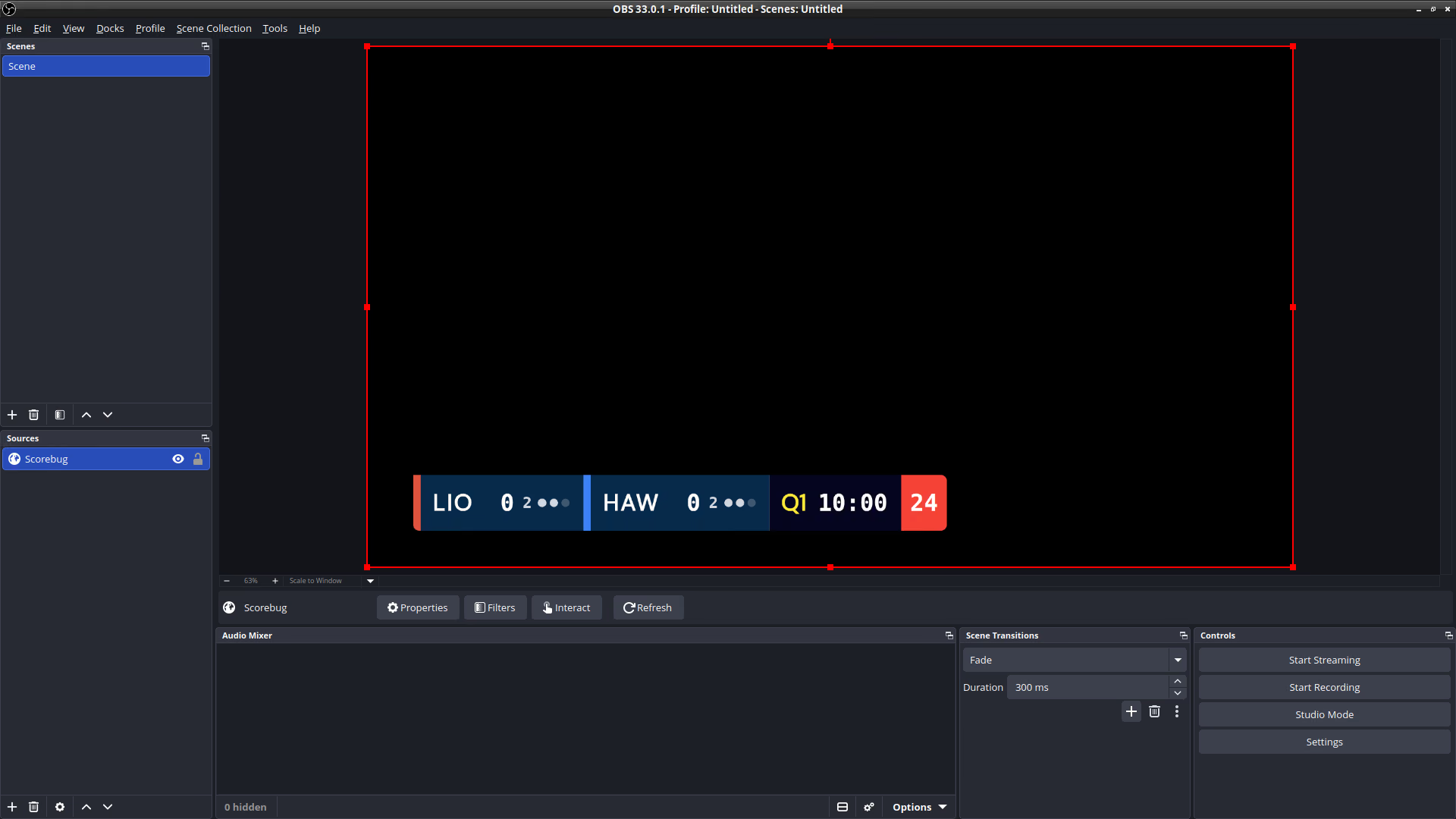
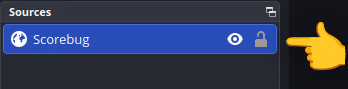
TipOne Scorebug per scene: add it to every scene that shows the game. It is the same link each time, so they all show the same score.
Test it: one tap on the phone
Before the game, open the board's Scorekeeper page on the phone that will keep the score, tap a point, and watch the OBS preview change. Then tap Undo. If the bar changes both times, everything is connected. The Scorekeeper's link comes from the same Outputs card: choose Scorekeeper, press Copy Link and send it to the phone.
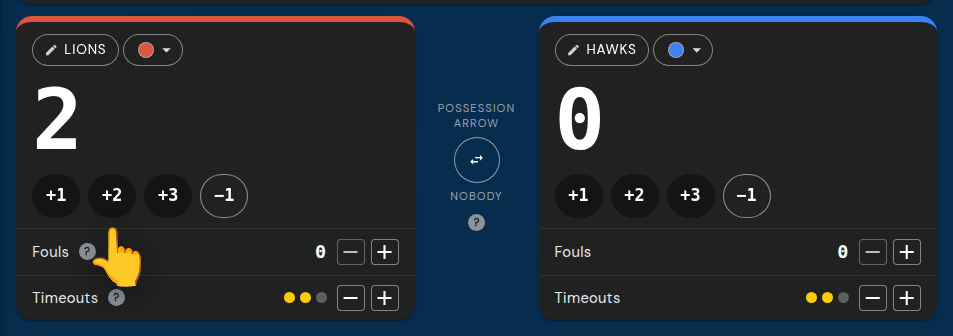
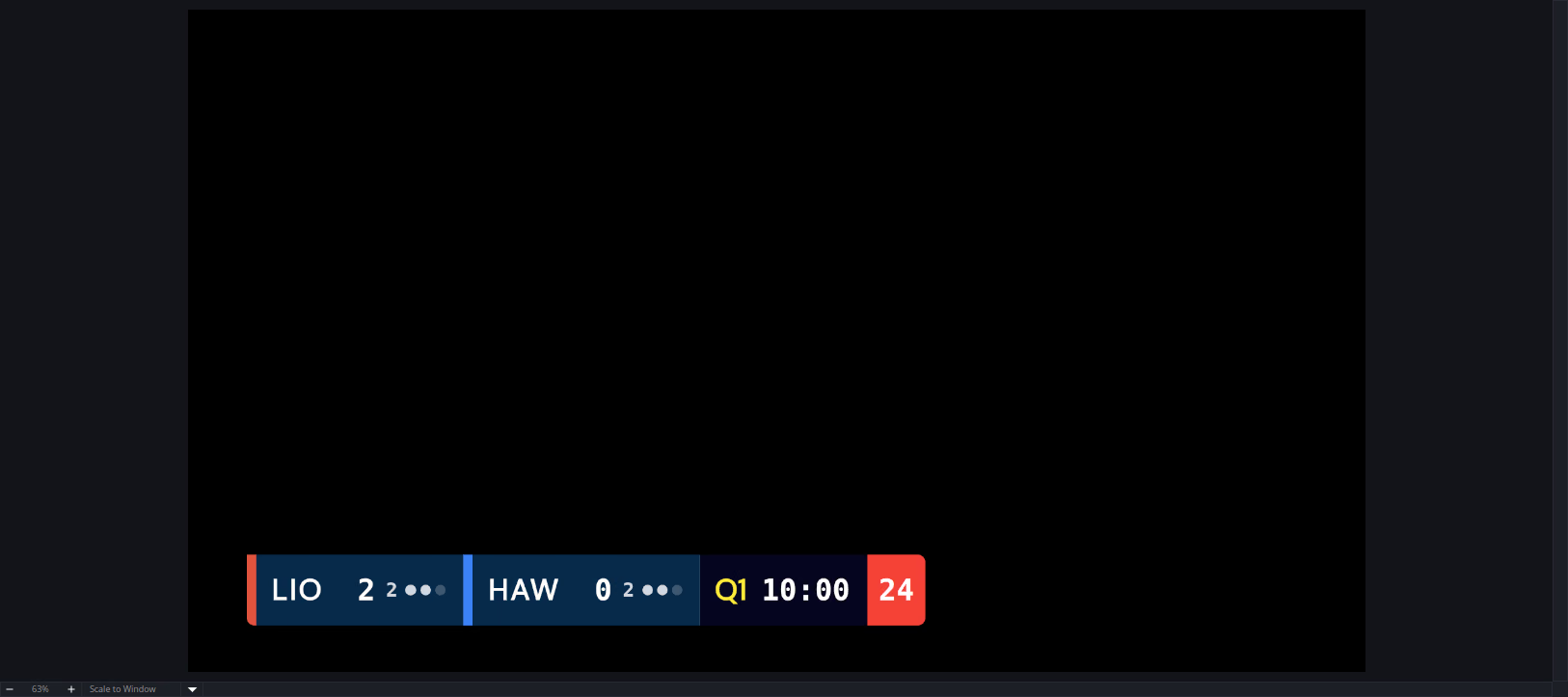
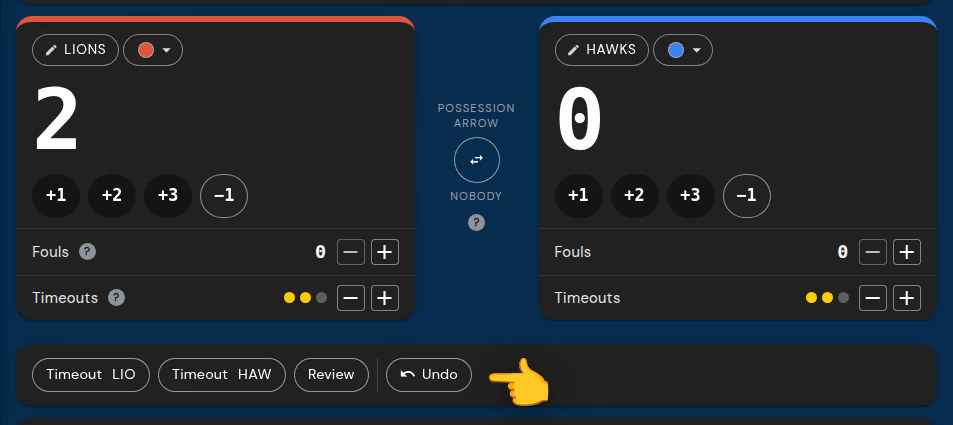
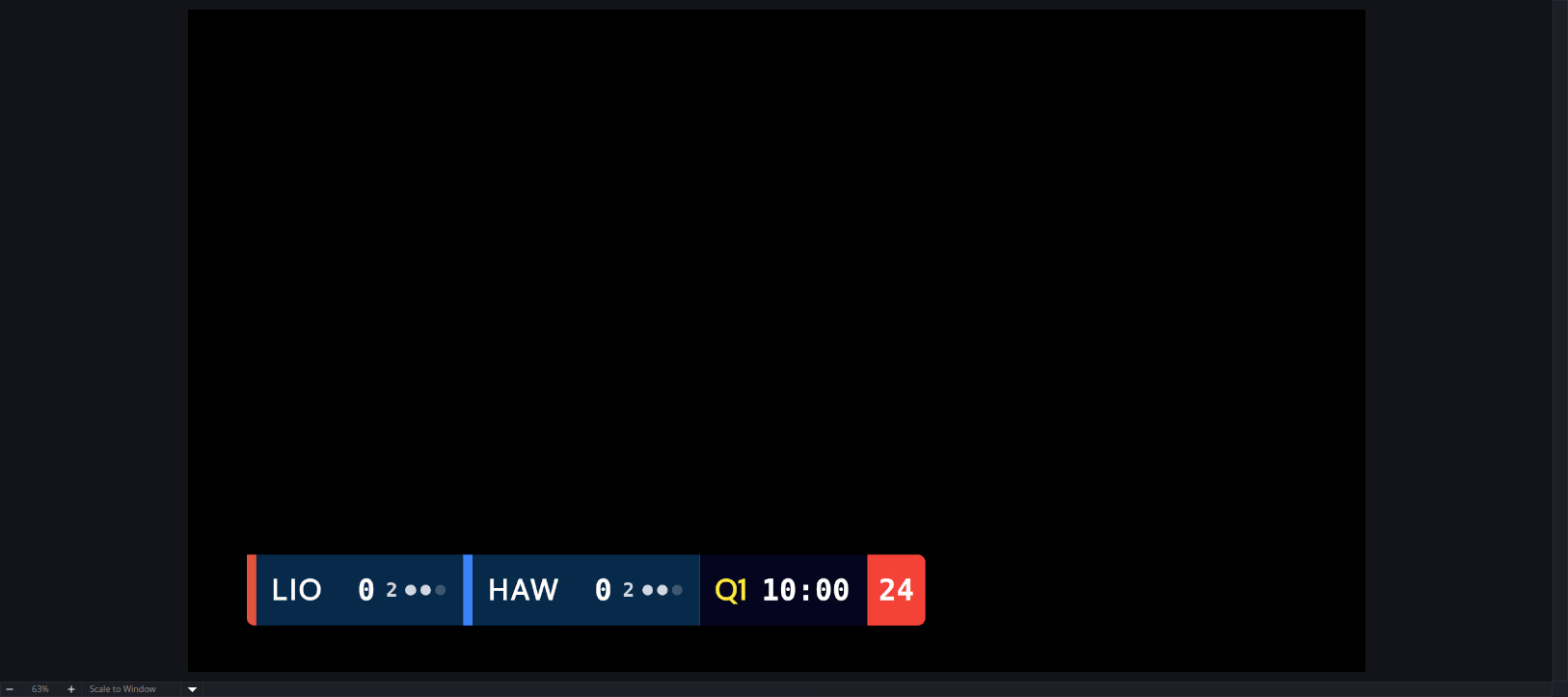
TipSend the Scorekeeper link to a parent, a coach or a friend at the scorer's table: you run the stream, they keep the score, and nobody touches OBS during the game.
Go live
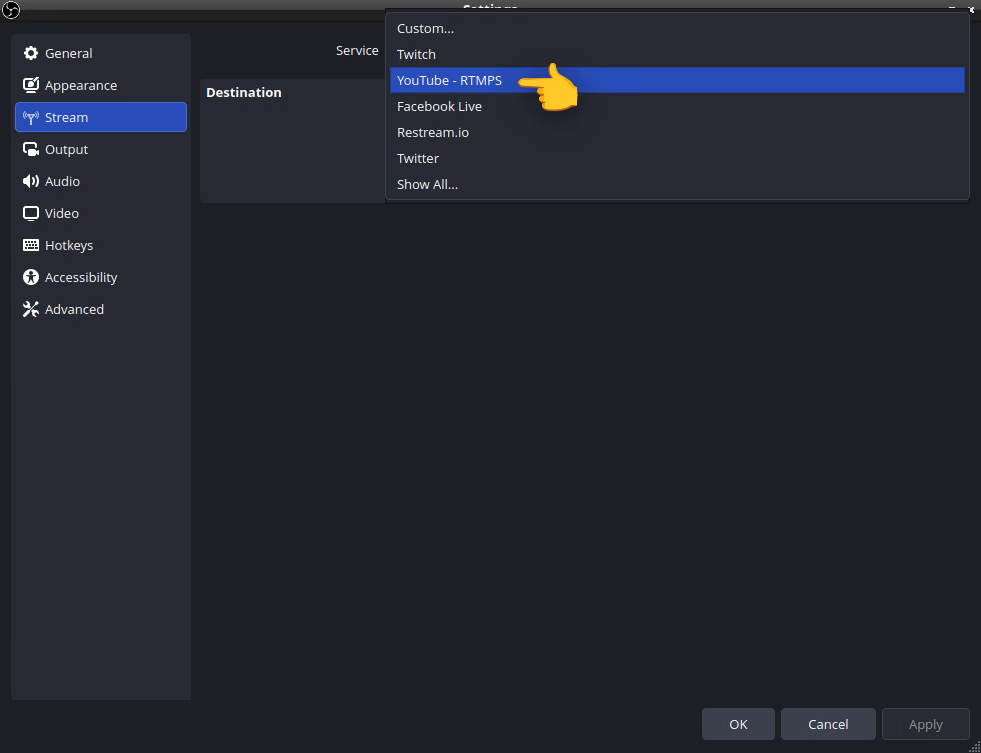
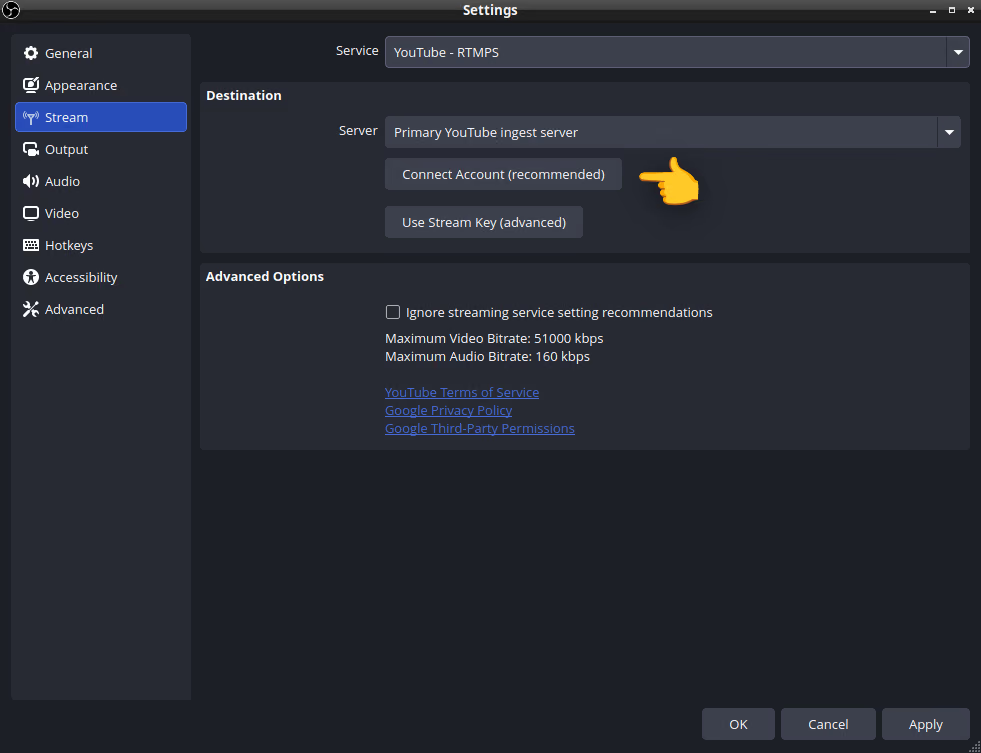
OBS streams to YouTube, Twitch and many other services, or to a custom server. Connect your account or paste the service's Stream key: The secret code a streaming service gives you so OBS can send it your stream. Never show it on screen. All terms once, then start streaming whenever the game begins.
- Open Settings › Stream and choose your service.
- Press Connect Account where OBS offers it, or paste the stream key your service gives you.
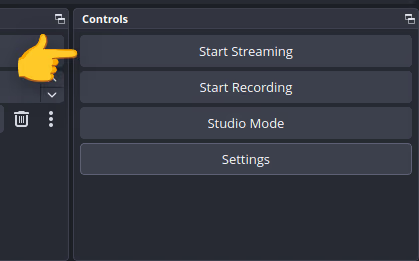
- Press Start Streaming in the Controls dock.
TipBefore the first real game, stream a test for a few minutes, as OBS itself advises: it shows any problem while nobody is watching.
During the game
Once it runs, the stream follows the board by itself. The board's owner can change the Scorebug's design at half-time, and a Blackout: A switch on the Scorekeeper page and on the board that hides the Scorebug from the stream and darkens the board's TV screens until it is switched off again. All terms hides the bar from the stream, for example during a replay or an interview, until it is switched off again; it darkens the board's TV screens too. If the streaming computer's connection drops for a moment, the clocks on the Scorebug keep running, and the score catches up as soon as it is back.
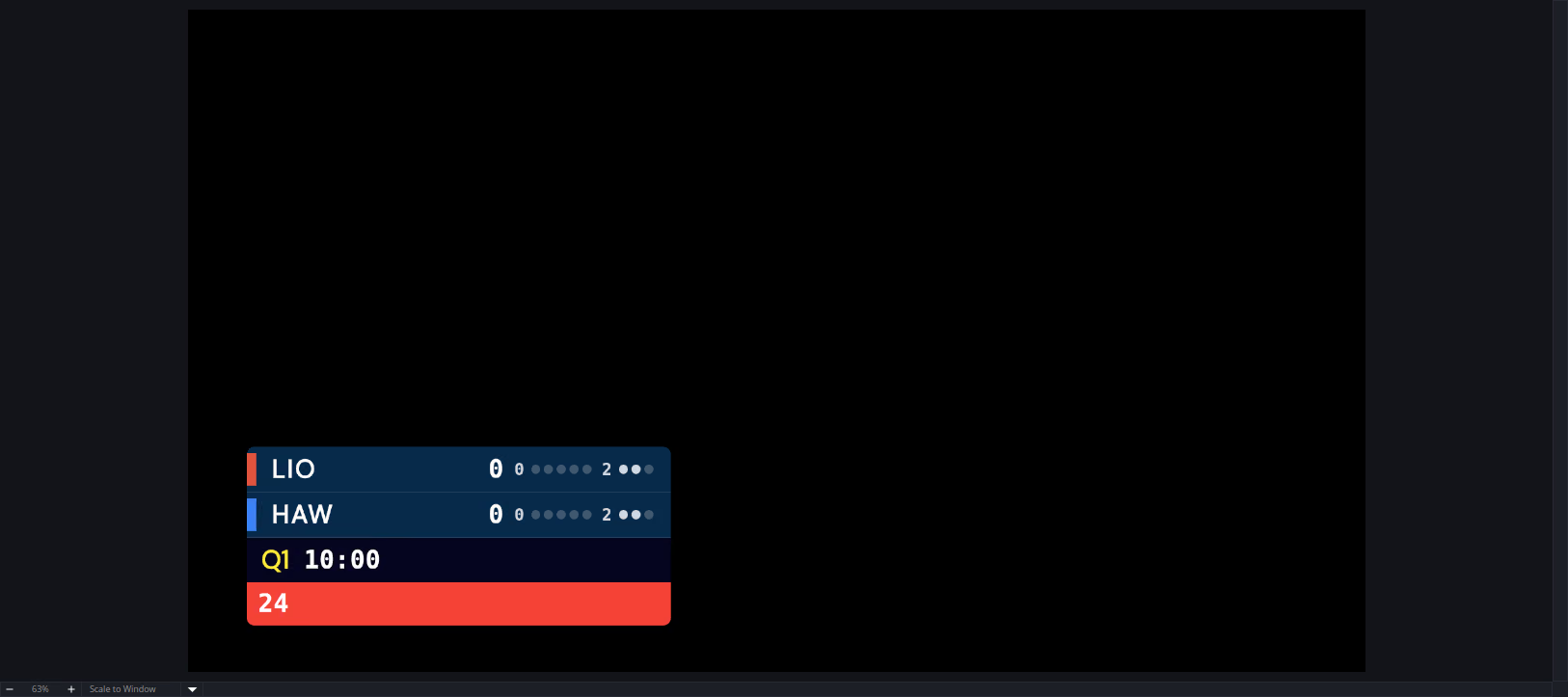
If something is wrong
When the Scorebug does not look right in OBS, the cause is almost always the browser source's size or its Custom CSS, a blackout, or a phone keeping the score of another board.
| You see | Do this |
|---|---|
| A white or black box around the bar | Open the source's properties and put Custom CSS back to its default: it is what makes the page's background transparent. |
| The bar is blurry or tiny | Set the source's Width and Height to your canvas size, such as 1920 × 1080, then right-click it and choose Transform › Reset Transform. |
| The score does not change | Open the source's properties and press Refresh cache of current page. Then check that the phone has this board's Scorekeeper link: its team names are the ones on the bar. |
| The bar has disappeared | A blackout is on: switch it off on the Scorekeeper page or the board. Or the source is hidden: click its eye icon in Sources. |
FAQ
Does the overlay have a transparent background?
Yes. The Scorebug page is transparent and its bar carries its own background, and an OBS browser source shows a transparent page as transparent with its default Custom CSS.
Does it work with vMix and other streaming apps?
Yes. vMix shows a web page with its Web Browser input, transparent background included: paste the same link there. Any streaming app that can show a web page as a source can take it.
Which sports does it work for?
Every sport MaestroScores keeps with two teams or players, from basketball and soccer to tennis, darts and pool: the Scorebug shows what the sport needs. A game of many teams, such as a quiz, has no Scorebug; its Scoreboard ranks the teams instead.
Can I show the scoreboard on a TV at the same time?
Yes. The same board's Scoreboard screen goes on a TV, and both always show the same numbers.
Is it free?
Yes. MaestroScores is free to use, and OBS Studio is free, open-source software.
Put a live scoreboard on your stream
Create a board for your sport, copy its Scorebug link, and add it to OBS as a browser source.
Streaming terms
- Blackout
- A switch on the Scorekeeper page and on the board that hides the Scorebug from the stream and darkens the board's TV screens until it is switched off again.
- Browser source
- An OBS source that shows a web page inside a scene. Its default Custom CSS makes the page's background transparent.
- Canvas
- The size of the picture OBS makes, its base resolution; every source is placed on it. It starts at your monitor's resolution.
- Capture card
- A device that brings the video of a camera or another machine into the computer, where OBS shows it as a video capture source.
- Custom CSS
- A browser source's style setting. Its default makes the page's background transparent, removes the page's margins and hides its scroll bar.
- Dock
- A panel of the OBS window, such as Sources or Controls. Docks can be moved around, and each can be popped out into its own window.
- OBS Studio
- Free, open-source software for recording and live streaming, for Windows, macOS and Linux.
- Scene
- One layout of your stream in OBS, made of sources stacked on top of each other: the camera, the overlay, text.
- Scorebug
- The small score bar a broadcast shows over the picture. In MaestroScores it is one of a board's screens, a page with a transparent background made for OBS.
- Scorekeeper
- The board's page for keeping the score on a phone. Its link goes to whoever keeps the score.
- Stream key
- The secret code a streaming service gives you so OBS can send it your stream. Never show it on screen.
- Download OBS Studioobsproject.com
- OBS Studio – Open Broadcaster Softwareobsproject.com
- Quick Start Guide – OBS Knowledge Baseobsproject.com
- OBS Studio Overview Guide – OBS Knowledge Baseobsproject.com
- Sources Guide – OBS Knowledge Baseobsproject.com
- Browser Source – OBS Knowledge Baseobsproject.com
- OBS Studio 32.2.0 – GitHub Releasegithub.com
- vMix Web Browservmix.com